A publish-ready AI video needs a clear message, accurate product details, readable text, coherent editing, and clean audio. Treat generation as one stage of production. Check the exported result before deciding it is ready to use.
Start with a message the video can deliver.
Before generating footage, identify the person, the question, and the next step. A video about everything your product does is difficult to make clear, especially when it is short.
For a fictional coffee brand, a useful brief might be: “Show someone who brews at home how this coffee fits into a simple morning routine.” That gives the script and visuals a shared purpose. It also makes it easier to reject a beautiful scene that does not help the story.
Check the product claims at this stage. Do not build an entire edit around a benefit you cannot substantiate. If you need help choosing the idea, start with the content-planning guide.
Those constraints make a short video easier to script, produce, and review.
Plan the scenes before you generate.
A storyboard can be a simple table. Give each scene a job and make sure the ending follows from the opening. Below is a suggested 15-second structure, not a claim about the ideal length for every audience or placement.
| Timing | Scene and purpose | Text or narration |
|---|---|---|
| 0–3 seconds | A cup and a recognizable morning moment. Establish the situation. | “Make this moment yours.” |
| 3–7 seconds | Show the product and the brewing action. Make the offer concrete. | A verified product detail, expressed simply. |
| 7–12 seconds | The pour and the finished cup. Complete the routine. | “Your cup. Your kind of morning.” |
| 12–15 seconds | A clear product view and a readable final frame. | One relevant invitation, such as exploring the coffee. |
Decide where captions and product labels will appear. Leave room for them rather than covering the focal subject later. Give the ending enough time to be read, and write the narration to fit the edit instead of rushing it into the last seconds.
Make every part of the edit support the same idea.
Keep the product recognizable.
Check packaging, logos, colors, and interface details against the real product. Generated visuals can be plausible while still being wrong. Use approved product assets wherever they provide a more faithful result.
Use transitions to connect the story.
A cut should take the viewer to the next useful piece of information. Consistent pacing and a clear visual sequence are more important than adding an effect between every scene. Remove scenes that repeat the same point without adding understanding.
Give the voice and captions room.
Listen for pronunciation, unnatural changes in voice, abrupt endings, and music that competes with speech. Read the captions at normal speed. Check whether they match what is said and whether the line breaks remain understandable on a phone.
Use the voiceover review guide to check pronunciation and the surrounding edit after a replacement recording. The caption guide covers wording, timing, line breaks, and readability in the intended player.
Design for the destination.
Choose the aspect ratio and composition for the placement you intend to use. Check its current requirements and preview the content in that context. Leave important text and product details clear of interface elements that may cover the edges.
Check the export, not just the timeline.
The file you publish is the result that matters. Watch it from beginning to end with sound, then again muted. Open it on a phone and make sure the message remains understandable without pausing.
Look for blank scenes, overlaps, broken transitions, unreadable text, cropped product details, cut-off speech, and abrupt music endings. Confirm that the final frame and CTA still match the destination.
Automated checks can catch technical problems and help flag inconsistencies. Human review still matters for product truth, taste, context, and whether the message is actually useful. Passing a quality checklist does not predict advertising performance.
Practice the review on a finished coffee video.
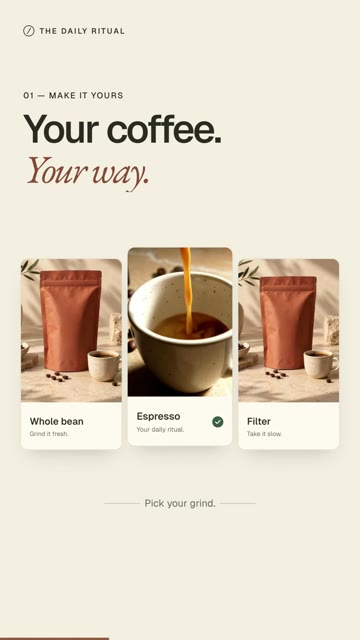
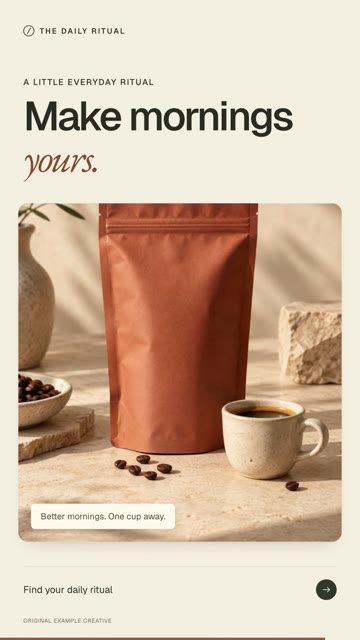
Open the coffee reel with playback controls and compare it with the frames below. This separate example is a 12.01-second, 720 × 1280 MP4; it is not a rendering of the suggested 15-second storyboard above. The brand and presenter are illustrative.

| Where to look | Visible evidence | The next review action |
|---|---|---|
| ≈1.2 seconds · opening | A presenter holds a cup below “Good coffee. No guesswork.” | Watch and listen to the whole opening. Check speech against the approved script; the image alone cannot establish pronunciation or lip synchronization. Keep an illustrative presenter distinct from a real customer endorsement. |
| ≈3.6 seconds · choices | Three tiles read “Whole bean,” “Espresso,” and “Filter.” | Read them during normal playback on a phone. For a real brand, compare the labels and selection cue with its actual range. If the scene must teach someone which option to choose, ask them to explain that choice after watching; visible labels alone may not answer it. |
| ≈6 seconds · pouring | The cup and pouring stream are visible in the sampled frame. | Play through the entire shot and its cuts. Follow the stream, cup edge and contact point as they move. A plausible frame does not establish continuity across the scene. |
| ≈10.8 seconds · close | The pack and cup return with “Make mornings yours” and “Find your daily ritual.” | Watch through the ending without pausing. Check that the invitation can be read, then verify the actual publishing destination separately. A graphic arrow inside a video is not a working link. |
Turn an observation into an actionable decision.
Write what you saw before deciding whether it passes. “The Filter label is visible at 3.6 seconds” records an observation. “The option matches the approved product range and is readable during playback” needs both a product reference and a playback check. If either is missing, leave that check unresolved.
Use the review record to attach the decision to the exact export. This exercise locates checks in a real file; it does not certify the example for every placement or measure its advertising results.
A final review you can use.
0 of 8 checkedUse this on the finished file. Ticking a box records your judgment; it does not inspect the video or approve it automatically. The checklist stays in this browser; it does not submit your information.
When a check fails, record the file version, timestamp, required correction, and owner in the creative-review worksheet. Keep missing product evidence marked as blocked. After a correction, review the replacement export and record a new decision against that exact file. The worksheet includes a worked example where fixing a clipped caption leaves an unsupported offer blocked.
See what the process can produce.
The examples below show two different ways to explain a product: a presenter-led story and a product-focused visual sequence. The creative choices differ; the need for a clear message and a complete edit remains.
Creative examples, not measured performance claims. Use the sound controls to listen; previews loop while visible.
For a real client delivery, explore NAIARA’s approved month of content. Its Spanish originals show how scripts, product scenes, a visual identity, and review come together across formats.
Aitoma’s social content and ad creative workflows connect production to your brand research. You still make the final decision about what is accurate, useful, and ready to publish.
This is practical production guidance from Aitoma. The storyboard is illustrative. The checklist supports editorial and technical review; it is not a guarantee that a video will convert or that every defect can be detected automatically.
Fix the edit, regenerate the shot, or stop?
Before generating another version, locate the cause. A caption timing problem, a distorted product and an unverified offer need different fixes. Use the smallest change that can resolve the issue, then watch the complete replacement export.
| What you observe | First action | What to recheck |
|---|---|---|
| A caption disappears before the spoken phrase finishes. | Adjust caption timing or line breaks in the edit. Regenerating the footage will not fix the caption track. | Read at normal speed on a phone. Check the following caption and the scene cut for new overlaps. |
| The pack label changes during a moving product shot. | Use an accurate approved product shot if available, or replace the affected generated shot. A sharp opening frame does not establish accuracy throughout the clip. | Compare the full shot with the product reference, including the transition into and out of it. |
| The voice mispronounces the product name. | Correct the pronunciation and replace the affected voice segment. If a presenter is visibly speaking, check whether the picture also needs replacing. | Listen across both audio joins, check caption timing, and watch visible speech for synchronization. |
| The call to action promises a discount nobody has confirmed. | Stop approval of that version. Ask the offer owner to confirm the terms, or agree on a different, accurate call to action. | Check the script, voice, on-screen text, caption and destination together. A cleaner edit cannot substantiate an offer. |
| A final label is covered by the destination app’s controls. | Reposition the overlay or make a separate layout for that placement. Check the actual destination preview rather than assuming one safe area fits every platform. | Preview the replacement on the intended device, with controls visible, and check the opening as well as the ending. |
Illustrative repair note: “Coffee reel v03, 00:04–00:06: the Filter caption ends before the spoken phrase. Editor to extend its timing, export v04, then recheck the following caption and full playback.” This is a fictional issue used to demonstrate a useful note; it is not a defect report for the coffee example above.
Record the decision against the file version in the review worksheet. Keep approval blocked when the necessary evidence is missing. For a live asset that has already been published, use the creative change register to track every destination that needs the correction.
Download the free AI video workflow starter kit.
Start with one video and keep its brief, production record, review and next decision together. This ZIP contains five blank TXT/CSV worksheets: a creative brief, timing log, version-specific review record, ad-testing plan and campaign learning log.
Download all five worksheets (ZIP). No account or sales call required. Open the text files in a text editor and the CSV in your spreadsheet app. The included readme explains the order of use; the files contain no macros or assumed time-saving benchmarks.
Plan the test before running it, record actual work during production, and review the complete export before accepting it. The kit organizes your evidence; it does not inspect the video or approve publication. For estimates, use your own inputs in the workload calculator. For a worked pass/revise/blocked example, see the creative review worksheet.