Watch the SimpleStudy video.
A presenter-style software video that moves from a recognizable problem to product screens and a clear invitation.
Illustrative creative · AI-generated presenter.
Explore the editFile details 15.02 seconds · 720 × 1280 px
- Duration
- 15.02 seconds
- Preview dimensions
- 720 × 1280 px
- File format
- MP4
- Audio
- Audio track included
Measured from the web preview files shown here. Confirm your production export requirements in the brief.
Download creative example file details (CSV). Includes file sizes and version identifiers.
Let the screen support the explanation.
Representative frames from the finished 15-second edit.
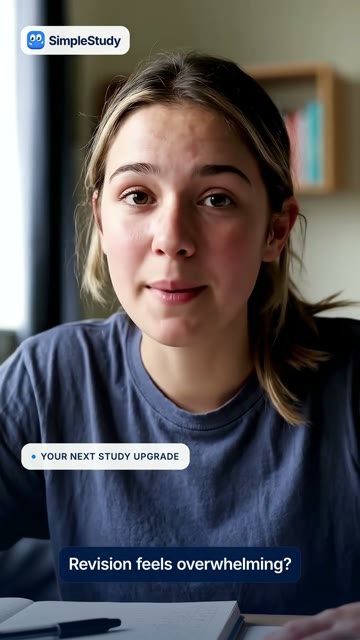
The presenter and opening caption introduce the study situation before the product interface appears.
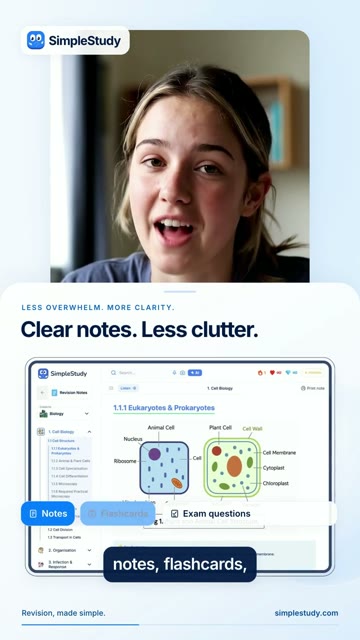
A clear product view shares space with the presenter and a short supporting headline.
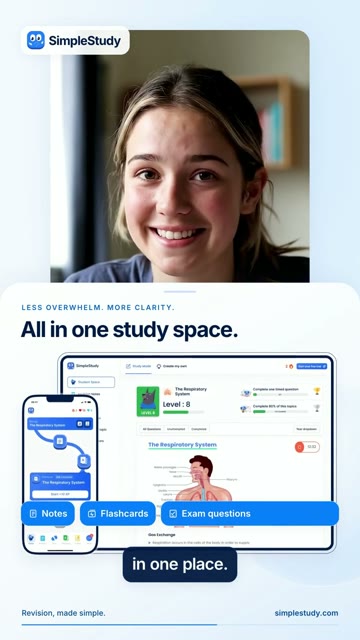
The desktop and phone visuals support the message of one study space.
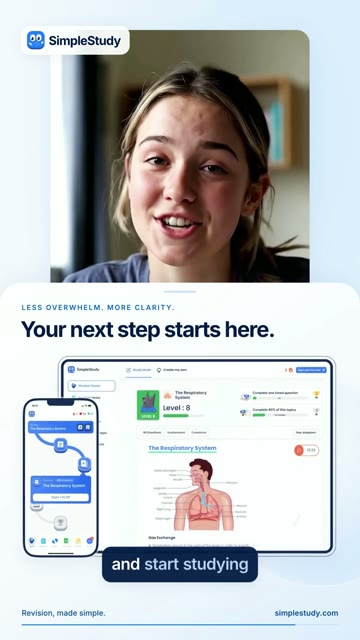
The wording moves from explaining the product toward getting started.
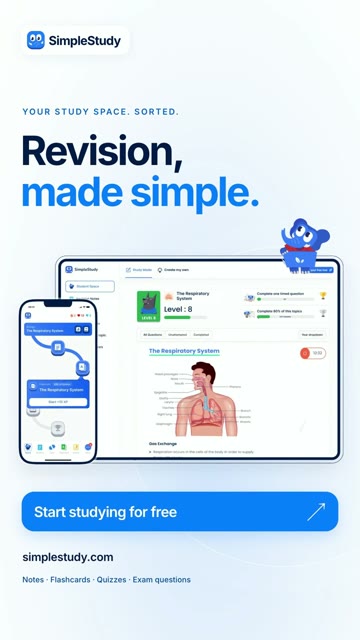
The ending keeps the product views and gives the invitation a dedicated button-like visual.
The person introduces the situation.
The opening uses a direct study-related question and a presenter in an everyday setting. It gives the viewer a situation before asking them to interpret a product screen. The content then moves into a composed layout where the presenter, product and text have separate roles.
A presenter can help deliver a message, but an AI-generated person is not evidence of a real customer experience. If you want to make a testimonial, obtain and represent a genuine customer’s account appropriately. This example is useful as a presentation format. See the AI presenter video workflow for how to brief the script, product scenes, and review.
The product makes the promise concrete.
As the edit progresses, product views support the explanation. The viewer can see the idea of an organized study space instead of hearing only an abstract claim. The blue accents and repeated interface framing connect the scenes.
For your own software, use current screens and verify every feature shown. Do not substitute an invented interface for a real workflow. If the footage is intended to demonstrate an action, the sequence must accurately represent what the user can do.
Captions and headlines do different jobs.
The captions follow the spoken message while larger headings summarize the scene. Keep both readable without allowing them to compete with the product view. Check the final export with sound off: the viewer should still understand the main idea.
Then listen with the screen out of view. Check pronunciation, sentence flow and whether the voice sounds consistent. Bringing these checks back together helps catch an edit that looks polished but feels awkward when played normally.
Adapt the structure to one real use case.
| Part | Brief for your software |
|---|---|
| Situation | Describe one task or frustration your intended user recognizes. |
| Explanation | State the specific help the product provides. |
| Product view | Show the screen or action that supports that statement. |
| Next step | Invite one action, matching the actual destination and offer. |
The closing invitation in this creative refers to starting for free. Verify your own offer before using similar wording. Build your version with the creative brief template and connect it to an accurate product explanation.
Give your software a clearer introduction.
Start with a free brand playbook, then shape a story around the people you want to reach.